Understanding Git's Working Directory, Staging Area, and HEAD
Almost every "why did Git do that?" moment traces back to the same gap: not knowing which of Git's three areas a command touches. Why does git diff go silent right after you run git add? Why does the same file show up twice in git status? Why does git reset --soft feel completely different from git reset --hard? Once you can picture the working directory, the staging area, and HEAD as three separate snapshots of your project, all of those answers become obvious — and they stay obvious for every Git command you meet later.
The Three Areas in One Picture
Git does not store one copy of your project — it maintains three at once. Each one holds a complete snapshot of every tracked file, and at any moment they can disagree with one another. Git's own documentation calls these the three trees.
.git/index. Nothing can be committed without passing through here first.Content flows right to become permanent, and left to be thrown away. Every arrow overwrites its destination with the contents of its source.
git add, git commit) promote your work toward permanence. Leftward commands (git restore) overwrite the left area with whatever the right area holds — which is why they can destroy work that only ever existed on the left.The Working Directory — Where You Actually Work
Your working directory is simply your project folder: src/, package.json, everything you can see in your file explorer. Git checks it out for you when you switch branches, but after that it belongs to you and your editor. Git does not watch it, does not lock it, and does not back it up.
The one folder that is not part of your working directory is .git/. That is the repository itself: object database, refs, and the index. Delete .git/ and you keep your files but lose all history. Delete your files except .git/ and .git/ can restore every committed version.
Tracked, modified, staged, untracked
Git sorts every path in your working directory into one of a few states, and git status is just a report on that sorting:
- Untracked — the file exists on disk but has never been added to the index or a commit. Git knows nothing about its contents.
- Unmodified — the file on disk is byte-identical to the version in HEAD. Git stays quiet about it.
- Modified — the file on disk differs from the staged version. The change exists only in your working directory.
- Staged — the version in the index differs from HEAD. The change is queued for the next commit.
# What differs between the working directory and the staging area?
git diff

# List every file that is currently presents in the git index
git ls-files

# Compact machine-readable status, including untracked files
git status --porcelain
git restore and git reset --hard will erase it forever.The Staging Area — Your Commit, Still in Draft
Most other version-control systems have nothing like the staging area: you commit, and your changes go straight into history. Git puts one step in between. That extra step lets you pick exactly which changes go into the commit, instead of committing everything you have edited.
Three names refer to the exact same thing: staging area, index, and cache. So when you see --staged in one command and --cached in another, both flags mean the same thing.
It is a snapshot, not a to-do list
git add does not mark a file for later. It copies the file's contents into the staging area straight away.
So if you edit the file after staging it, the staging area still holds the older version — and that is the version git commit will record.
# Stage the current contents of a file
git add src/api.ts

# Stage only selected hunks — the real payoff of having a staging area
git add -p src/api.ts

# Review exactly what you are about to commit, before you commit it
git diff --staged

# Inspect the index itself: mode, blob hash, stage number, path
git ls-files --stage

# Unstage a file but keep your edits on disk
git restore --staged src/api.ts
Why bother staging at all?
- Focused commits from unfocused work — fix a bug and a typo in one session, then commit them separately with
git add -p. - A review step you control —
git diff --stagedshows precisely what will be recorded, so debug prints and strayconsole.loglines get caught before they enter history. - Keeping local-only files out — scratch scripts and experiments can stay in the working directory indefinitely without ever being committed.
- Conflict resolution — during a merge the index holds multiple stages of a conflicted file, and
git addis how you tell Git "this version is resolved."
git commit -a saves you a step: it stages your changes and commits them in one command. But it only includes files Git already tracks. A file you just created is left out.HEAD — A Pointer, Not a Place
HEAD answers one question: which commit is my next commit's parent? Almost always it does so indirectly. .git/HEAD is a small text file, and its contents are usually not a commit hash at all but a reference to a branch:
cat .git/HEAD
ref: refs/heads/main

cat .git/refs/heads/main
3a9f1c27b4e8d0a5f1c9b7e2d4a6c8e0f2b4d6a8

# The same chain, via plumbing commands
git symbolic-ref HEAD      # -> refs/heads/main
git rev-parse HEAD         # -> 3a9f1c27b4e8...
So the full chain is HEAD → branch → commit. That is what makes committing work: when you commit, Git creates the new commit and then moves your branch forward to point at it. HEAD itself never changes — it still says ref: refs/heads/main, and main now points somewhere new.
Commits run left to right, oldest to newest. Normally HEAD points at a branch; when it points straight at a commit, HEAD is detached.
Detached HEAD, demystified
Run git checkout 3a9f1c2 and Git writes the raw hash into .git/HEAD instead of a ref: line. You can still make commits, but those commits have no branch pointing at them — move away and they become unreachable, which is exactly what the alarming warning message is trying to tell you. The fix is never dramatic: git switch -c my-branch creates a branch at your current position, or git switch main walks away.
HEAD-relative shorthand
| Notation | Means |
|---|---|
HEAD | The commit at the tip of the current branch |
HEAD~1 / HEAD~ | One commit back along the first-parent line |
HEAD~3 | Three commits back along the first-parent line |
HEAD^ | The first parent of HEAD (same as HEAD~1) |
HEAD^2 | The second parent — only meaningful on a merge commit |
HEAD@{2} | Where HEAD pointed two moves ago, read from the reflog |
ORIG_HEAD | Where HEAD was before the last risky operation (merge, rebase, reset) |
~ walks backward through generations; ^ chooses which parent at one commit. On a linear history they are interchangeable. On a merge commit, HEAD^1 is the branch you merged into and HEAD^2 is the branch you merged in.Reading git status as Three Comparisons
git status looks like a list of files. It is really the result of two diffs and one filesystem scan, and its section headings map exactly onto the three areas:
git status

On branch main

Changes to be committed:        # staging area vs HEAD
        modified:   src/api.ts

Changes not staged for commit:  # working directory vs staging area
        modified:   src/api.ts
        modified:   src/app.ts

Untracked files:                # on disk, in neither area
        notes.md
Note that src/api.ts appears in the first two sections at once. That is not a bug and it is not ambiguity — it is precise. Its staged snapshot differs from HEAD, and its on-disk contents differ from that staged snapshot. It was staged, then edited again.
git commit right now, only the staged version of src/api.ts is recorded — the later edits stay uncommitted, and src/app.ts is not included at all. Run git add again first if you want the newest contents.The Three Diffs — Same Command, Different Pairs
With three areas there are three pairs to compare, and git diff gives you one invocation for each. This is the single most useful payoff of the mental model, and the answer to "why does git diff show nothing?"
Three areas, three pairs, three diff invocations — each one compares a different pair.
| Command | Compares | Answers |
|---|---|---|
git diff | Working directory ↔ staging area | "What have I changed but not staged?" |
git diff --staged | Staging area ↔ HEAD | "What exactly will my next commit record?" |
git diff HEAD | Working directory ↔ HEAD | "What have I changed since my last commit, staged or not?" |
So when git diff prints nothing right after git add, Git is not broken and your change is not lost. The working directory and the staging area now match, so there is genuinely no difference between them. Ask a different pair with git diff --staged and your change reappears.
Which Areas Does Each Command Touch?
Every everyday Git command can be described as "copy from area X into area Y." Once you can place a command on this table, its behaviour stops being something you memorise.
| Command | Working directory | Staging area | HEAD / branch |
|---|---|---|---|
git add <file> | Unchanged | Overwritten from working directory | Unchanged |
git commit | Unchanged | Unchanged | New commit; branch advances |
git restore <file> | Overwritten from staging area | Unchanged | Unchanged |
git restore --staged <file> | Unchanged | Overwritten from HEAD | Unchanged |
git reset --soft HEAD~1 | Unchanged | Unchanged | Branch moves back one commit |
git reset HEAD~1 (mixed) | Unchanged | Overwritten from new HEAD | Branch moves back one commit |
git reset --hard HEAD~1 | Overwritten from new HEAD | Overwritten from new HEAD | Branch moves back one commit |
git switch <branch> | Updated to match target branch | Updated to match target branch | Points at the new branch |
git stash | Cleaned to match HEAD | Cleaned to match HEAD | Unchanged (changes saved aside) |
git rm --cached <file> | Unchanged (file stays on disk) | Entry removed — file becomes untracked | Unchanged |
git reset <commit> moves your branch back to that commit. The flag decides what else changes: --soft stops there, --mixed also resets the staging area, and --hard resets your working directory too. Same operation, three depths. Give it file paths instead of a commit — git reset -- <file> — and it does something different: it only unstages those files and leaves your branch alone. Our guide to reset, revert, and restore covers that in detail.Seeing the Three Areas in LithiumGit
A GUI helps here because it can show all three areas at once instead of one text report at a time. In LithiumGit, a free Git GUI client, the changes panel splits staged and unstaged entries into separate lists, so the distinction the git status headings describe is visible at a glance rather than inferred from indentation.
Two lists: your working directory and your staging area
The Modified and Staged tabs are the first two areas. Below, two files have been edited and one of them has been staged — the counts Modified (2) and Staged (1) tell you at a glance how far each change has travelled.
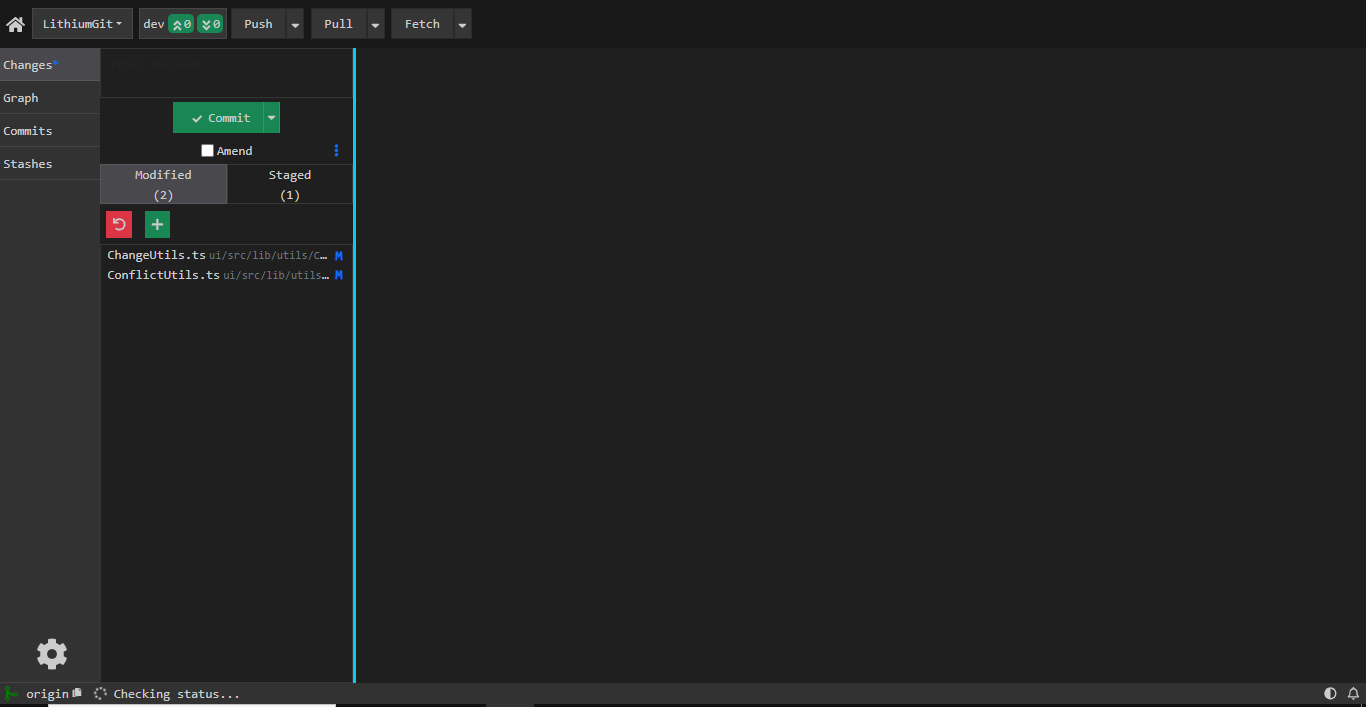
Modified (2) is your working directory; Staged (1) is your staging area
Each list diffs against a different area
This is where the three-area model pays off, because LithiumGit names the pair it is comparing in the title bar. Select a file from Modified and you get Index ↔ Working Directory — the same comparison as git diff. Select one from Staged and you get HEAD ↔ Index — the same comparison as git diff --staged.
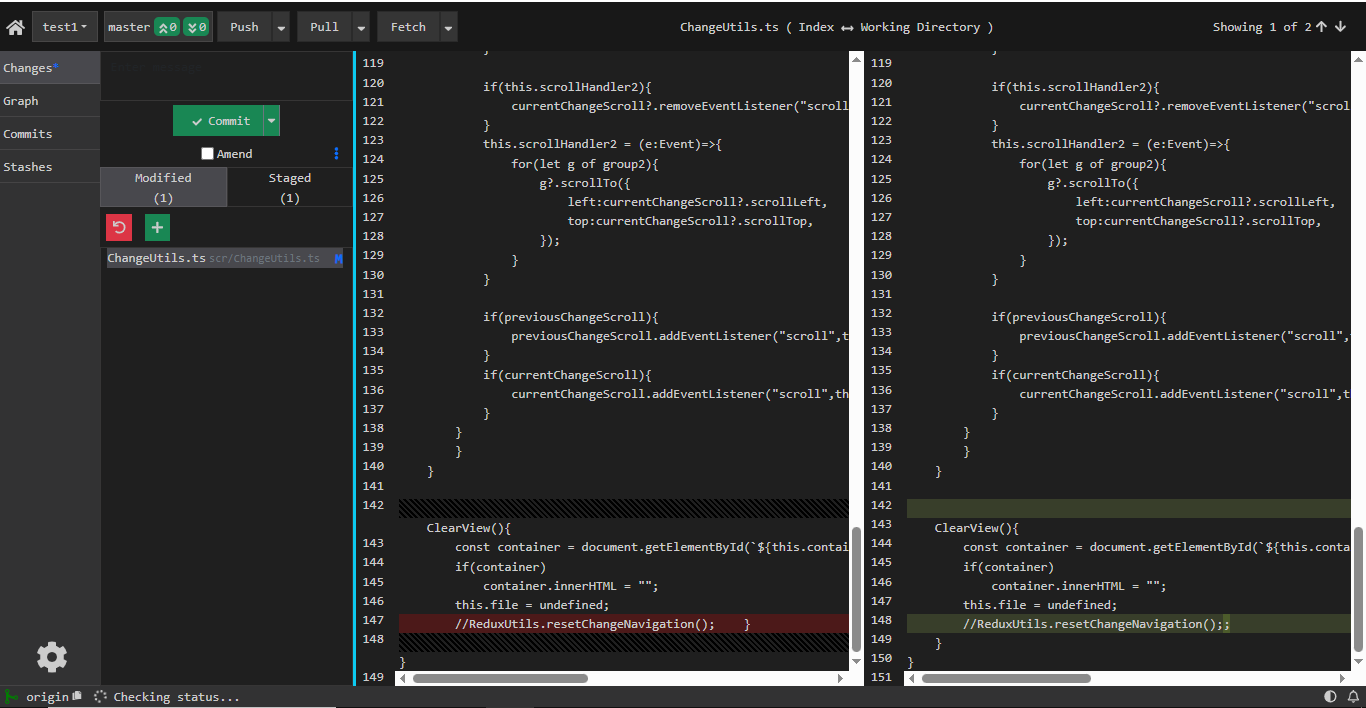
From Modified — Index ↔ Working Directory, i.e. git diff
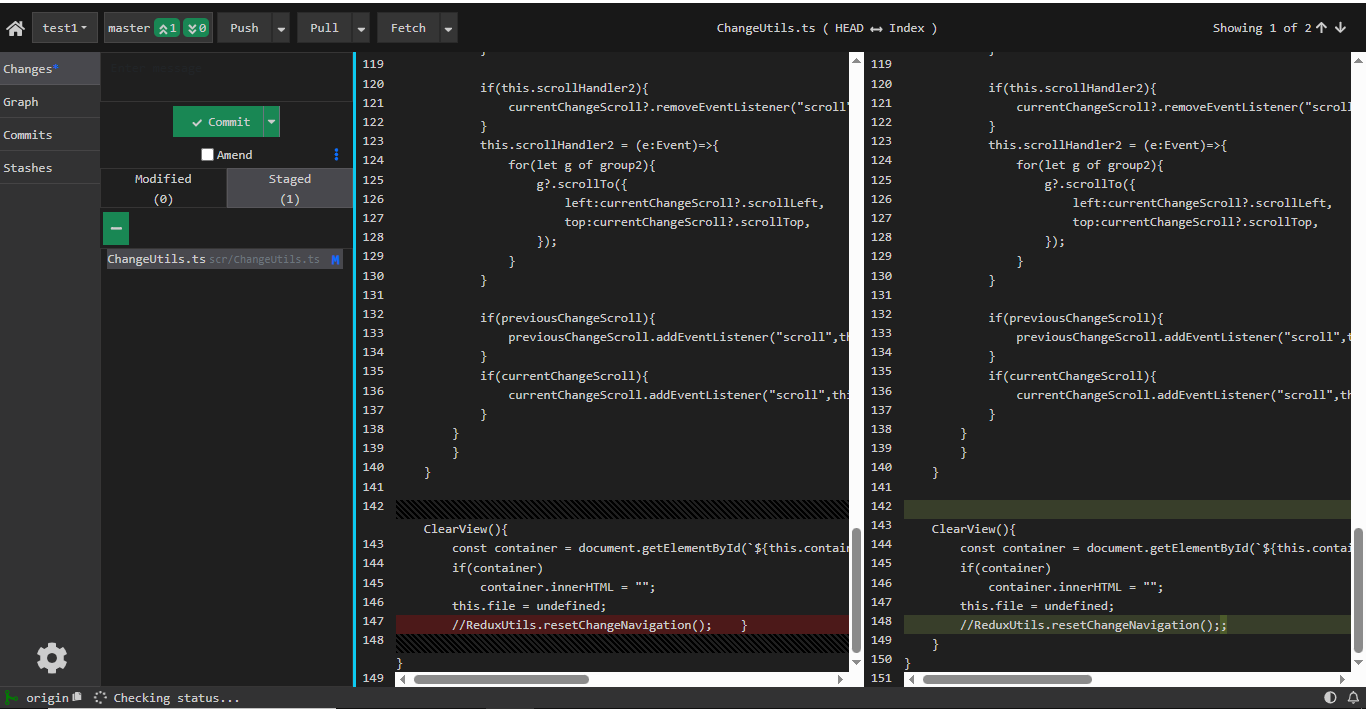
From Staged — HEAD ↔ Index, i.e. git diff --staged
Notice that both screenshots show the same file and the same change. Only the areas differ.
HEAD in the commit graph
The third area is a pointer, so LithiumGit draws it as one. In the graph the current commit is marked H for HEAD, with the branches that point at it listed above.
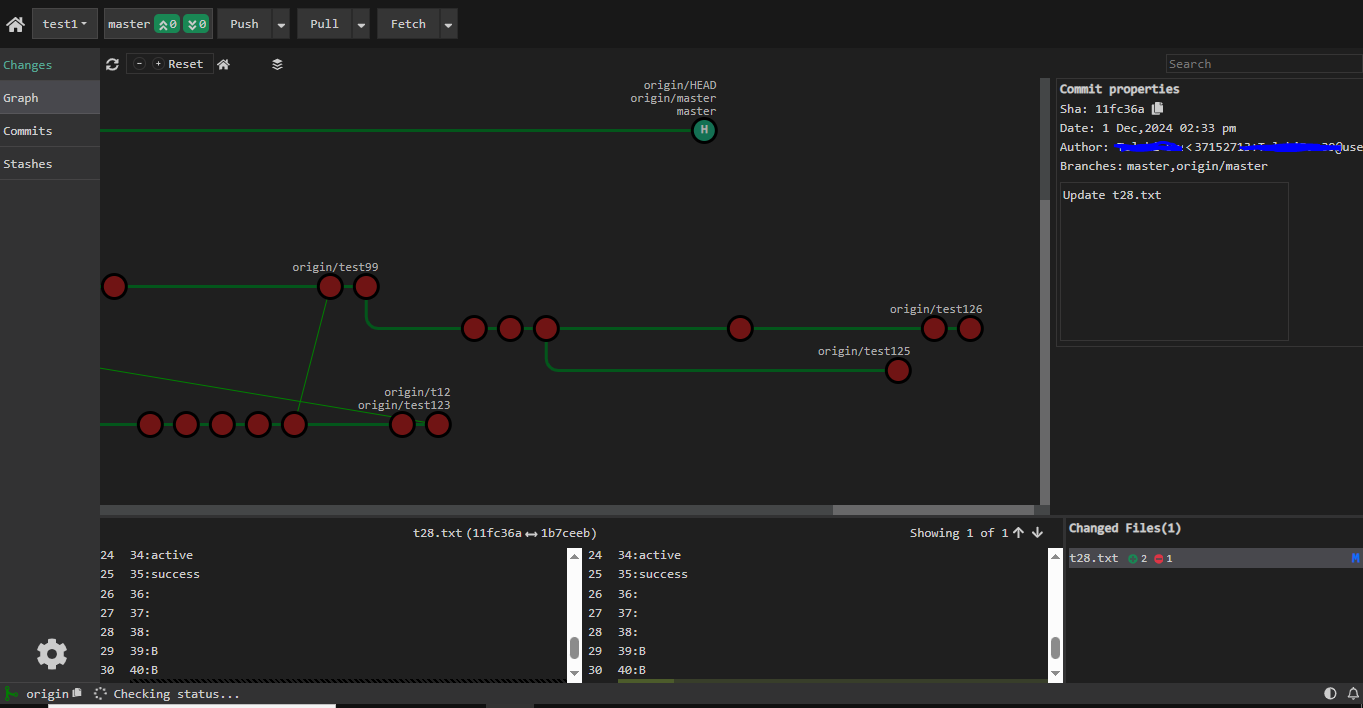
The commit marked H is where HEAD points; master and origin/master point at the same commit
Five Gotchas That Suddenly Make Sense
- A file listed as both staged and unstaged. You staged it, then kept editing. The index and your disk hold two different versions, and both differ from HEAD.
.gitignorebeing ignored. Ignore rules only apply to untracked paths. If a file is already in the index, Git keeps tracking it — you needgit rm --cached <file>to evict it from the staging area first.- An empty
git diffon a real change. The change is staged, so the working directory and the index agree. Usegit diff --staged. git commit -amissing a new file. The-aflag only auto-stages tracked files. An untracked file needs an explicitgit add.- Committing on a detached HEAD and "losing" the commit. No branch advanced, so nothing references your new commit once you switch away. Find it with
git reflogand attach a branch to it.
Frequently Asked Questions
- What is the difference between the working directory, the staging area, and HEAD in Git?
- The working directory is the set of actual files on your disk that you edit. The staging area (also called the index) is a snapshot of what your next commit will contain, stored in the .git/index file. HEAD is a pointer to the commit at the tip of your current branch — the last committed snapshot. Content moves right with git add and git commit, and left with git restore.
- Is the staging area the same thing as the Git index?
- Yes. The staging area, the index, and the cache are three names for the same thing: the binary file at .git/index that records the exact content and metadata of every path that will go into your next commit. That is why some commands say 'staged' while some flags are named --cached.
- What exactly does HEAD point to in Git?
- HEAD is normally a symbolic reference to a branch rather than directly to a commit. The file .git/HEAD contains a line like 'ref: refs/heads/main', and that branch file contains the commit hash. When HEAD contains a raw commit hash instead, you are in a detached HEAD state.
- Why does git diff show nothing after I run git add?
- Plain git diff compares the working directory against the staging area. Once you stage a file those two are identical, so there is nothing to report. Use git diff --staged to compare the staging area against HEAD, or git diff HEAD to compare the working directory against the last commit.
- Why does the same file appear under both 'Changes to be committed' and 'Changes not staged for commit'?
- Because you staged the file and then edited it again. The staged version differs from HEAD, which puts it under 'Changes to be committed', and the version on disk now differs from the staged version, which also puts it under 'Changes not staged for commit'. Committing now would record the staged version, not what is on disk.
- What does the staging area actually give me?
- It lets you build a commit deliberately instead of committing whatever happens to be on disk. You can stage part of a file with git add -p, split one messy editing session into several focused commits, and review exactly what is about to be recorded with git diff --staged before you commit.
- Does git commit -a skip the staging area?
- No — it fills the staging area for you automatically, then commits. It stages every modification and deletion to already-tracked files only, so a brand-new untracked file will not be included unless you git add it first.
- Is the .git folder part of my working directory?
- No. The .git folder is the repository itself: the object database, the refs, and the index. Your working directory is everything else in the project folder — the files you edit. Deleting .git leaves your files with no history; deleting your files leaves .git able to restore every committed version.
- What is the difference between HEAD~1 and HEAD^2?
- HEAD~1 walks one generation back along the first-parent line. HEAD^2 selects the second parent of HEAD, which only exists on a merge commit. On a linear history HEAD~1 and HEAD^1 mean the same commit; on a merge commit HEAD^1 is the branch you merged into and HEAD^2 is the branch you merged in.