Stop Guessing: Choose the Right Git Merge Strategy Every Time
Every time you run git merge, Git silently picks a strategy to combine your branches. Most developers never think about it — and that's exactly why merges sometimes produce unexpected results. Git ships with eight merge strategies: fast-forward, ort, recursive, resolve, subtree, octopus, ours, and squash. Each one is designed for a specific situation. This guide explains all of them with clear visual examples, so you can stop guessing and start choosing the right strategy every time.
Quick Reference: All Git Merge Strategies at a Glance
| Strategy | Merge Commit? | Rewrites History? | Best For |
|---|---|---|---|
| Fast-Forward | No | No | Linear, up-to-date branches |
| ORT (default) | Yes | No | Everyday two-branch merges (Git ≥ 2.33) |
| Recursive | Yes | No | Everyday two-branch merges (Git < 2.33) |
| Resolve | Yes | No | Simple two-branch merges, criss-cross histories |
| Subtree | Yes | No | Merging an external project into a subdirectory |
| Octopus | Yes (multi-parent) | No | Merging 2+ independent feature branches at once |
| Ours | Yes | No | Recording a merge while discarding incoming changes |
| Squash | No (staged only) | Yes (commits collapsed) | Condensing noisy feature-branch history |
1. Fast-Forward Merge
A fast-forward merge is the simplest possible merge. When your branch has not diverged from the source — meaning every commit on your branch is already reachable from the source — Git simply advances your branch pointer. The result is a perfectly linear history with no merge commit at all.
Before and after a fast-forward merge
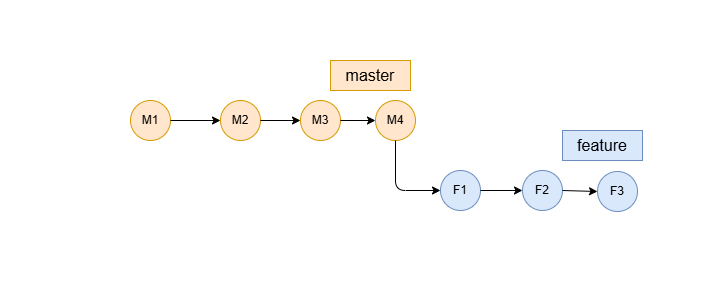
Before — feature branch is directly ahead of master
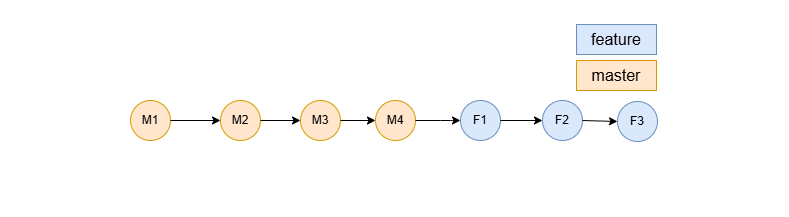
After — master pointer moves forward, no merge commit
Git CLI command
# Fast-forward is Git's default when possible
git checkout master
git merge feature

# To reject the merge if fast-forward is not possible, use --ff-only
git merge --ff-only feature
When to use fast-forward
- Integrating a short-lived local branch that nobody else has used
- When you want a clean linear history with no merge commit noise
- Pulling the latest commits from a remote when your local branch has no new work
--no-ff on important feature branches to force Git to always create a merge commit, even when a fast-forward would have been possible. In this case, Git falls back to its default merge strategy — ORT (or recursive on Git older than 2.33) — to produce the merge commit. This ensures there is always a visible merge event in the log, clearly marking when and where the branch was integrated.2. ORT Strategy (Default since Git 2.33)
Since Git 2.33 (released August 2021), ORT is the default merge strategy for merging two branches. You rarely need to specify it explicitly — it is what Git uses automatically when you run git merge on diverged branches. It resolves conflicts using a virtual merge base when histories have criss-crossed, which avoids spurious conflicts that older strategies could introduce.
Before and after an ORT merge
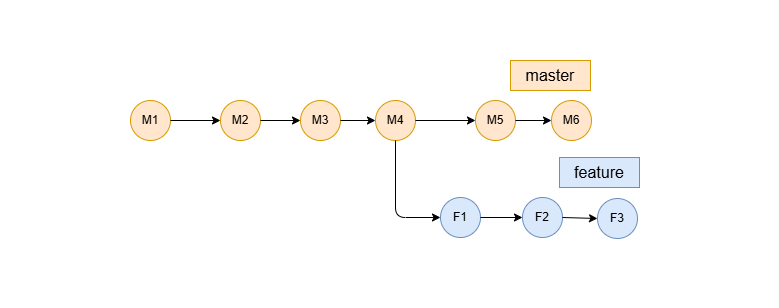
Before — two branches have diverged from a common ancestor
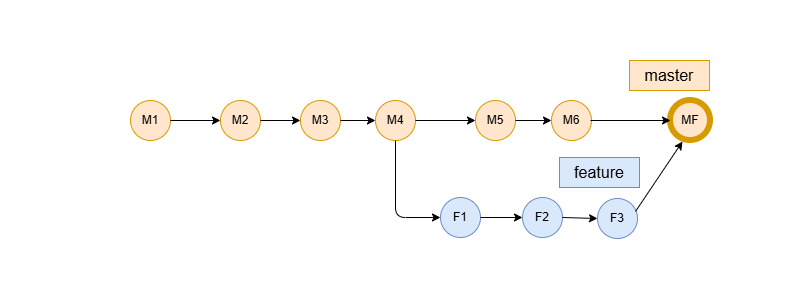
After — a merge commit with two parents joins the branches
Git CLI command
# ORT is used automatically — no flag needed on Git >= 2.33
git checkout master
git merge feature

# To specify ORT explicitly
git merge -s ort feature
When to use ORT
- Virtually every standard two-branch merge — it is the default for a reason
- Repositories that were previously experiencing spurious conflicts with the recursive strategy
- Large repositories where merge performance matters
3. Recursive Strategy
The recursive strategy was Git's default merge strategy from version 1.0 all the way until Git 2.33. It performs a three-way merge between two branch tips and their common ancestor. When there are multiple merge bases (criss-cross merges), it recursively merges them to create a virtual merge base. In modern Git, ORT supersedes it — but recursive remains available and behaves identically in most real-world scenarios.
Before and after a recursive merge
Before — two branches diverged from a common base commit
After — a merge commit ties the two histories together
Git CLI command
# Specify recursive explicitly (default on Git < 2.33)
git merge -s recursive feature

# Recursive also accepts strategy options, e.g. prefer 'ours' on conflicts
git merge -s recursive -X ours feature
When to use recursive
- You are on Git older than 2.33 and need the default strategy behaviour
- You need to pass strategy options (
-X ours,-X theirs,-X patience) that you are used to pairing with recursive - In CI pipelines pinned to older Git versions
4. Resolve Strategy
The resolve strategy is Git's older, simpler merge algorithm. It merges exactly two branch tips using a single merge base. When multiple merge bases exist (a criss-cross history pattern), resolve picks one of them and may silently discard changes that recursive or ORT would handle correctly. Use it only when you understand your repository's history structure and need the speed benefit.
Before and after a resolve merge
Before — two diverged branches, single common ancestor
After — standard merge commit produced by the resolve strategy
Git CLI command
# Use the resolve strategy explicitly
git merge -s resolve feature
When to use resolve
- Repositories with a simple, non-criss-crossed history where you want a slightly faster merge
- When you have previously hit edge-case bugs in the recursive strategy and want a more conservative algorithm
- Rarely needed — prefer ORT or recursive in most cases
5. Subtree Strategy
The subtree strategy is used when you want to incorporate another repository (or branch) into a subdirectory of your current project rather than at the root. Git automatically detects the path prefix and adjusts the merge accordingly. This is an alternative to git submodules for embedding external dependencies directly into your repository tree.
Before and after a subtree merge
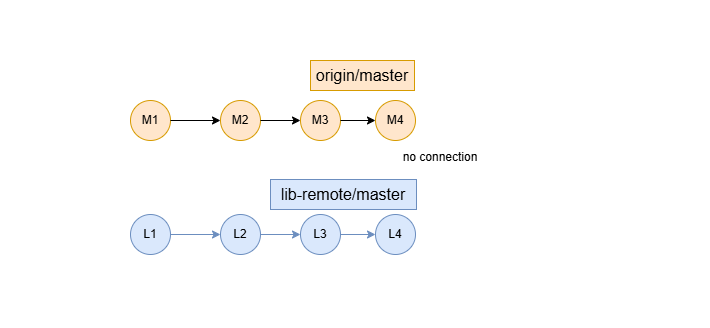
Before — two unrelated histories: origin/master and the external lib-remote/master
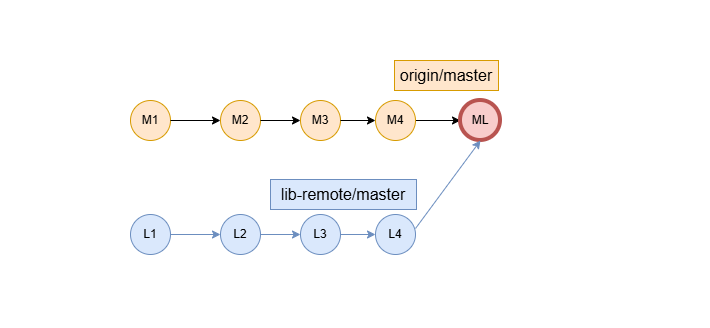
After — lib-remote history merged into origin/master under a subdirectory
Git CLI command
# Add the external repository as a remote
git remote add lib-remote https://github.com/example/lib.git
git fetch lib-remote

# Merge using the subtree strategy, placing it under 'libs/my-lib'
git merge -s subtree --allow-unrelated-histories lib-remote/master

# Or use the subtree option with recursive to specify a prefix explicitly
git merge -s recursive -X subtree=libs/my-lib lib-remote/master
When to use subtree
- Embedding a third-party library or tool directly into your repository
- Importing a project from another repository into a specific subdirectory
- When you want to avoid the overhead of git submodules while still tracking upstream changes
6. Octopus Strategy
The octopus strategy is Git's way of merging many branches at once. Instead of merging them one at a time (which would create a chain of merge commits), octopus combines them all into a single multi-parent commit. It is intentionally designed for situations where the branches being merged are independent and do not conflict — if there are conflicts, Git will refuse the octopus merge and ask you to resolve them branch-by-branch.
Before and after an octopus merge
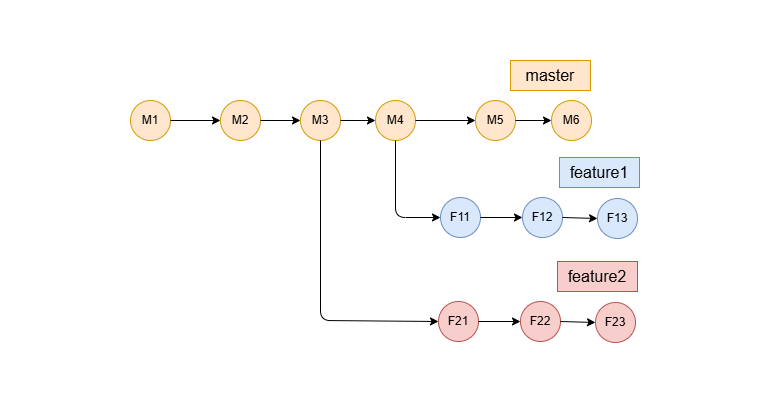
Before — feature1 and feature2 branches diverged from master, ready to merge
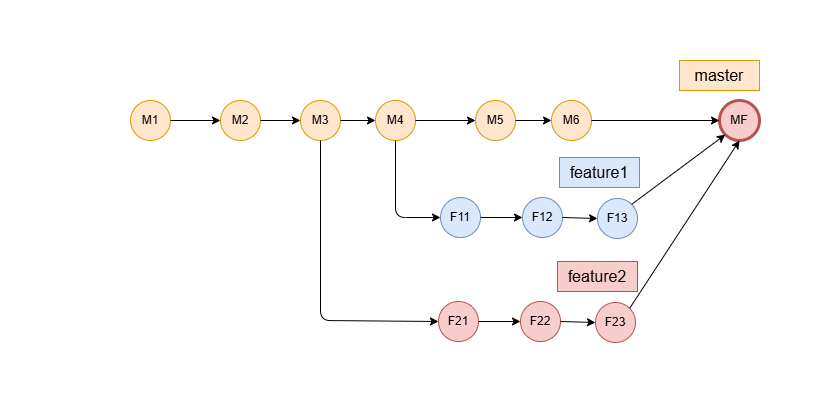
After — feature1 and feature2 merged into master in one merge commit with multiple parents
Git CLI command
# Merge feature1 and feature2 into master (octopus is auto-selected)
git checkout master
git merge feature1 feature2

# Or specify the strategy explicitly
git merge -s octopus feature1 feature2
When to use octopus
- Integrating multiple independent, non-conflicting feature branches in a single step
- Topic-branch workflows where several small branches are ready to land simultaneously
- When you want to avoid a chain of merge commits and prefer a single multi-parent node in the graph
7. Ours Strategy
The ours strategy is deceptively named. It does not simply prefer your changes in a conflict — it ignores all changes from the other branch completely. The merge commit is recorded in history (so tools and scripts that trace merges work correctly), but the resulting working tree is identical to what your branch already had.
This is different from the -X ours strategy option (which resolves individual file conflicts in your favour). The -s ours strategy discards the entire incoming branch, not just conflicting hunks.
Before and after an ours merge
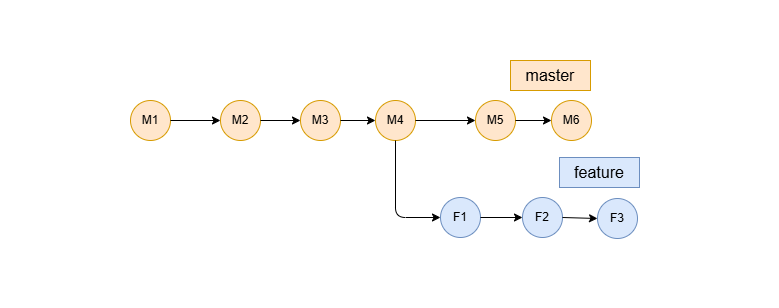
Before — feature branch diverged from master; feature's changes will be discarded
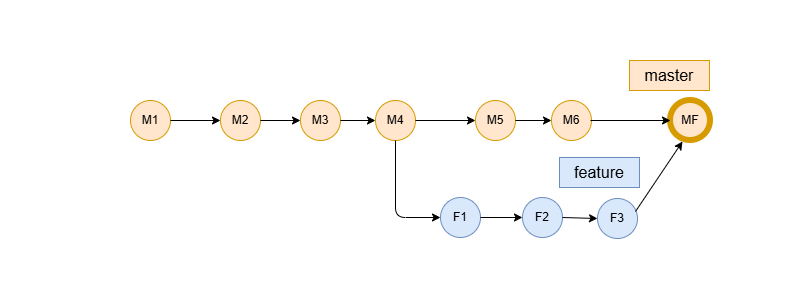
After — merge commit recorded on master; feature branch changes discarded entirely
Git CLI command
# Merge feature into master but keep only master's content
git checkout master
git merge -s ours feature

# Tip: do NOT confuse -s ours (strategy) with -X ours (strategy option)
# -X ours resolves conflicts in your favour; -s ours discards everything from theirs
When to use ours
- Superseding an old branch — you want to record it as merged without pulling any of its changes in
- Keeping a release branch in sync with master while intentionally ignoring hotfixes that were already handled differently
- Marking a branch as "done" in history without integrating its work
8. Squash Merge
A squash merge takes every commit on the source branch and flattens them into a single uncommitted change in your working tree. You then commit that change as one tidy commit. This produces a clean, linear history on the target branch without cluttering it with every incremental "WIP" or "fix typo" commit from the feature branch.
Important: because no real merge commit is created, Git does not record that the source branch was merged. Running another squash merge from the same branch later will bring in all commits again rather than just the new ones.
Before and after a squash merge
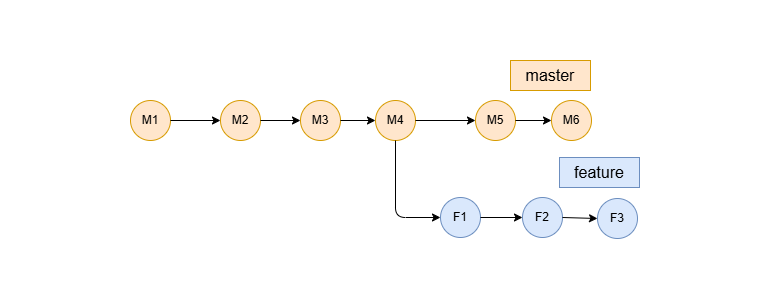
Before — feature branch has 3 incremental commits
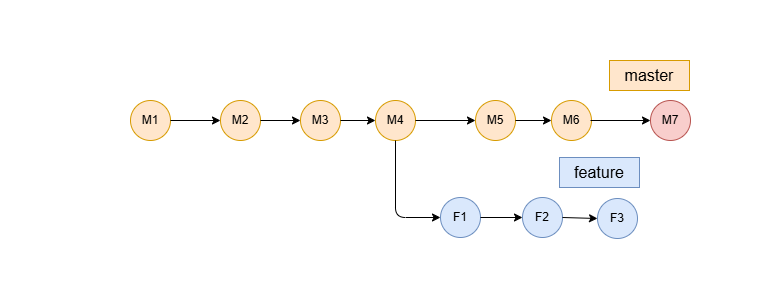
After — all commits squashed into one(M7) clean commit on master
Git CLI command
# Stage all changes from the feature branch as a single diff
git checkout master
git merge --squash feature

# Then commit the staged changes as one clean commit
git commit -m "feat: add my-feature"
When to use squash
- Feature branches with a noisy commit history (many "WIP", "fix", "oops" commits)
- Teams that enforce a one-commit-per-feature policy on the master branch
- Pull requests where reviewers want to see one atomic change land on master
Choosing the Right Strategy: Decision Guide
Not sure which strategy to use? Work through these questions:
- Are the histories linear (no divergence)? → Use fast-forward. If you want a merge commit anyway, use
--no-ff. - Merging two standard diverged branches? → Use the default (ORT) — just run
git merge. - Merging three or more independent branches? → Use octopus.
- Want a single clean commit on master? → Use squash.
- Want to record a merge but throw away all incoming changes? → Use ours.
- Merging an external project into a subdirectory? → Use subtree.
- On old Git or need recursive-specific options? → Use recursive explicitly.
Frequently Asked Questions
- What are the different Git merge strategies?
- Git supports several merge strategies: fast-forward (no merge commit when history is linear), ort (default since Git 2.33), recursive (default before Git 2.33), resolve (simpler three-way merge), subtree (merges into a subdirectory), octopus (merges 3+ branches at once), ours (keeps your branch content, discards incoming), and squash (collapses all commits into one staged diff).
- What is the default Git merge strategy?
- Since Git 2.33, the default merge strategy is 'ort' (Ostensibly Recursive's Twin), which replaced 'recursive'. It is faster and handles corner cases more reliably. You rarely need to specify it explicitly.
- What is the difference between git merge --squash and a regular merge?
- Git merge --squash collapses all commits from the source branch into a single staged change on your current branch. You then create one clean commit manually. A regular merge preserves every individual commit and creates a merge commit.
- When should I use the 'ours' merge strategy?
- Use 'ours' when you want to record that a merge happened for tracking purposes but intentionally want to discard all changes from the other branch, keeping only the content of your current branch.
- What is the octopus merge strategy in Git?
- The octopus strategy merges more than two branches in a single operation, producing a single merge commit with multiple parents. It is automatically selected when you specify more than two branch names in a git merge command.
- How do I choose a Git merge strategy?
- For most everyday merges, the default ort/recursive strategy is the right choice. Use fast-forward for a clean linear history. Use squash to condense noisy feature-branch commits. Use ours to record a merge without taking any changes. Use octopus to merge multiple independent branches at once. Use subtree when integrating an external project into a subdirectory.