Git Rebase vs Merge — What's the Difference and When to Use Each
Git merge and git rebase are two of the most commonly confused Git operations. Both achieve the same end goal — incorporating changes from one branch into another — but they do it in fundamentally different ways, with very different effects on your project history. Understanding the difference between git merge and git rebase will make you a more confident developer and help you choose the right tool for every situation. The examples below use LithiumGit, a free open-source Git GUI client, to visualise each operation.
The Core Difference in One Sentence
Think of merge as saying "these two histories joined here" and rebase as saying "pretend I always branched from this point".
Git Merge — Preserving History
When you do git merge master into your feature branch, Git finds the common ancestor of both branches and creates a new merge commit at your feature branch with two parents. Every original commit on both branches remains exactly intact.
What the graph looks like before merging
Below you can see two diverged branches in LithiumGit's interactive graph. We are currently checked out to the development branch, which has commits that are ahead of master.
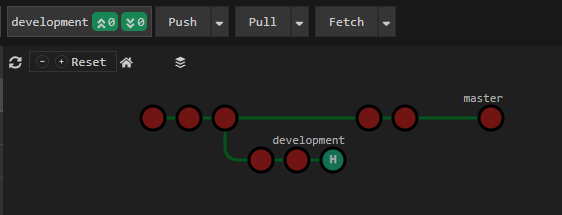
LithiumGit graph — two branches diverged, ready to merge
Initiating a merge in LithiumGit
In LithiumGit, right-click the branch you want to merge into your current branch on the interactive graph, then select Merge. LithiumGit shows a preview of what the resulting graph will look like before you confirm.
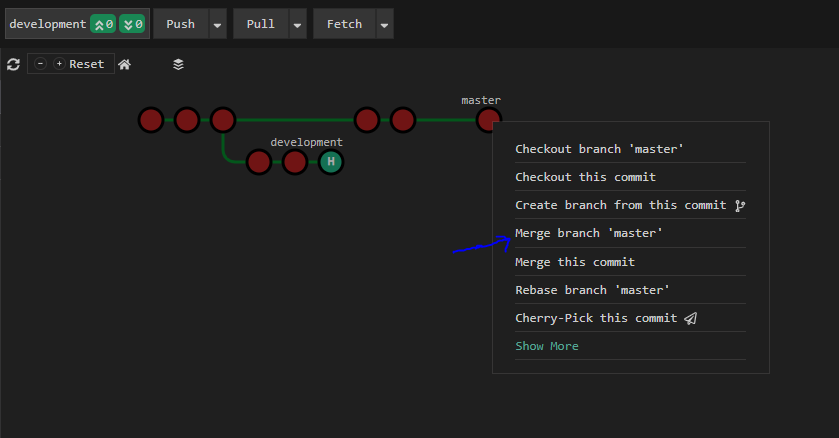
Right-click the branch → Merge
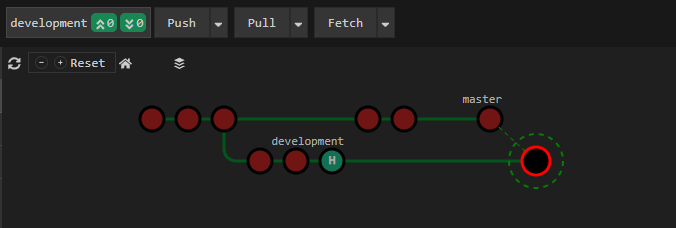
LithiumGit shows a merge preview before confirming
Equivalent Git CLI commands
# Switch to the branch you want to merge INTO
git checkout development

# Merge master into development (--no-ff ensures a merge commit is always created)
git merge --no-ff master
After the merge is finalised
Once confirmed, a new merge commit appears joining the two lines of history. The full commit history from both branches is preserved.
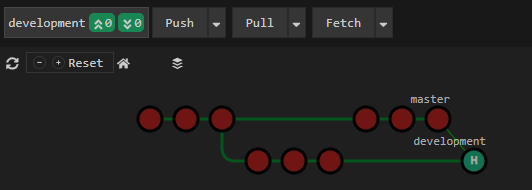
Graph after merge — a merge commit unifies both branches
Key characteristics of Git Merge
- Non-destructive — existing commits are never modified
- History is preserved — you can see exactly when branches diverged and converged
- Creates a merge commit — the graph forms a diamond (fork → merge)
- Safe for shared branches — teammates' local copies are not broken
- Can get noisy — frequent merges produce many merge commits in the log
Git Rebase — A Clean, Linear History
When you do git rebase master from your feature branch, Git takes each commit on your branch, detaches them, and replays them one-by-one on top of the latest commit in master. The result looks as if you started working from the very tip of master — no merge commit, no diamond, just a straight line.
Important: because each commit is replayed, it gets a brand-new commit hash. Rebase rewrites history. This is why you should never rebase a branch that other developers are actively sharing.
Before rebasing
The graph below shows the same diverged state as before — we are checked out to development, which has commits that were made while master moved forward.
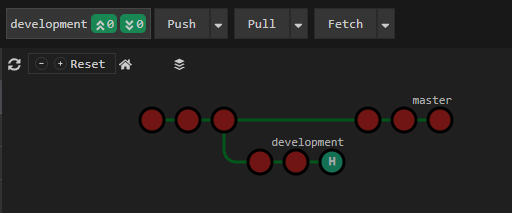
LithiumGit graph — checked out to development, which is behind master, ready to rebase
Initiating a rebase in LithiumGit
Right-click the target branch (e.g. master) in LithiumGit's graph and select Rebase. Git will replay your current branch's commits on top of it(master).
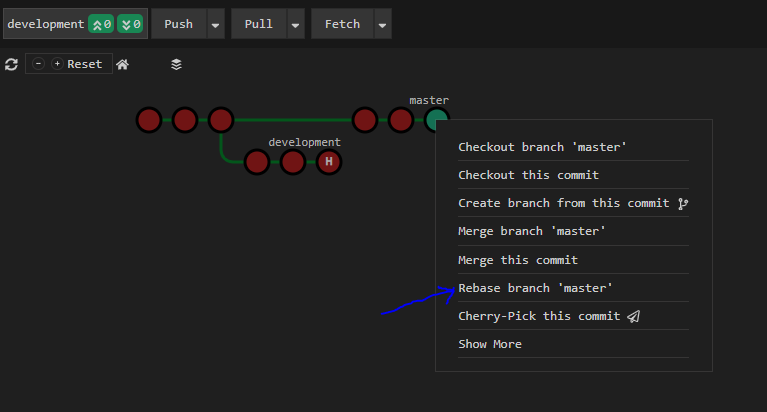
Right-click the target branch → Rebase
Equivalent Git CLI commands
# Switch to the branch you want to rebase (your feature/working branch)
git checkout development

# Rebase development onto master
git rebase master
After the rebase
The development branch commits have been replayed on top of master. The graph is now perfectly linear — no merge commit, no fork shape, just a straight line of commits.
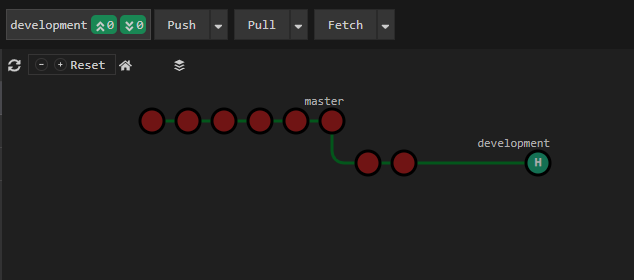
Graph after rebase — linear history with no merge commit
Key characteristics of Git Rebase
- Linear history — produces a clean, straight commit log
- No merge commit — the graph stays uncluttered
- Rewrites history — commits get new hashes; do not rebase shared branches
- Easier to read with
git log— every commit has a single parent - Can surface conflicts per-commit — you may need to resolve conflicts at each replayed commit
Merge vs Rebase — Side-by-Side Comparison
| Feature | Git Merge | Git Rebase |
|---|---|---|
| Creates a merge commit? | Yes | No |
| History shape | Non-linear (diamond) | Linear (straight line) |
| Rewrites commit hashes? | No | Yes |
| Safe on shared branches? | Yes | No — avoid on shared branches |
| Preserves original timestamps? | Yes | No |
| Conflict resolution | Once, at merge commit | Per commit during replay |
| Best for | Integrating feature branches into master | Updating a local branch before merging |
When to Use Git Merge
- Merging a completed feature branch into master — this is the most common use case
- When you want to preserve an accurate record of when branches were integrated
- On shared or public branches that other developers are also using
- When the team follows a GitFlow or similar branch-based workflow
When to Use Git Rebase
- Updating your local feature branch with the latest commits from master before opening a pull request
- Cleaning up a messy local commit history (with interactive rebase) before sharing with the team
- When your team prefers a linear commit history in the project log
- On branches that only you are working on and have not yet pushed publicly
A Practical Workflow Using Both
Many teams combine merge and rebase in a single workflow:
- Create a
featurebranch frommasterand do your work - When
masterhas moved forward, rebase your feature branch onto master to pull in the latest changes and keep your branch up to date - Resolve any conflicts that arise during the rebase
- Open a pull request — because your branch was rebased, it will fast-forward cleanly
- Merge the pull request into master (with or without a merge commit, depending on your team preference)
This approach gives you the best of both worlds: a clean, rebased history during development, and a clear merge event recorded when the feature lands in master.
# 1. Create a feature branch from master
git checkout master
git checkout -b feature/my-feature

# 2. Do your work and commit...
git add .
git commit -m "Add my feature"

# 3. When master has moved forward, rebase your branch onto it
git fetch origin
git rebase origin/master

# 4. Push and open a pull request (force-push needed after rebase)
git push origin feature/my-feature --force-with-lease

# 5. Once the PR is approved, merge into master
git checkout master
git merge --no-ff feature/my-feature
Frequently Asked Questions
- What is the difference between git merge and git rebase?
- Git merge combines two branches by creating a new merge commit that preserves the full history of both branches. Git rebase rewrites the commit history by moving your branch commits on top of another branch, producing a clean, linear history without a merge commit.
- When should I use git merge instead of git rebase?
- Use git merge when integrating feature branches into master, when working in a team where others share the same branch, or when you want to preserve the exact history of when and how branches diverged.
- When should I use git rebase instead of git merge?
- Use git rebase to update a feature branch with the latest changes from master before merging, to clean up a messy local commit history before sharing with the team, or when you prefer a linear, readable project history.
- Does git rebase rewrite history?
- Yes. Git rebase creates new commits with new hashes for every commit that is moved. You should never rebase a branch that other developers are working on, as it will break their local copies.
- How do I merge or rebase in LithiumGit?
- In LithiumGit, right-click on any branch in the interactive graph and choose Merge or Rebase from the context menu. LithiumGit provides a preview before finalising the merge operation and visual feedback on the resulting history.